Getting Started with mitmproxy
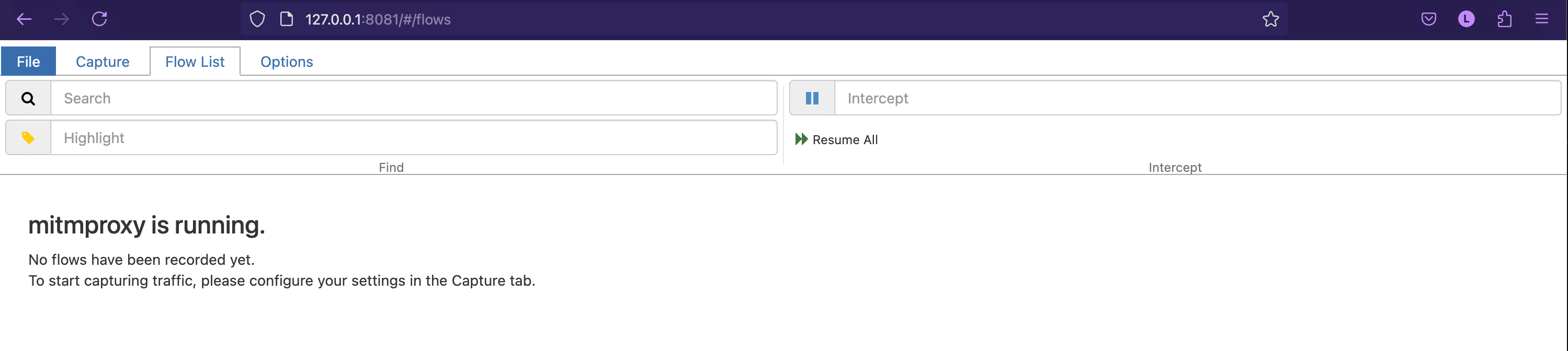
Launch mitmweb
Start the mitmproxy web interface on port 8888:
mitmweb -p 8888 &
Configuring iOS Devices
Set Up Proxy:
In your Wi-Fi settings, configure the HTTP proxy to your computer’s IP address and port8888.Install mitmproxy Certificate:
- Open Safari and navigate to:
http://mitm.it - Select iOS and follow the instructions to download the mitmproxy certificate.
- Install the certificate by going to:
Settings > General > Profile
Tap on the downloaded profile and install it.
Enable Full Trust:
Navigate to:Settings > General > About > Certificate Trust Settings
Enable full trust for the mitmproxy root certificate.Optional - Simulator Certificate Installation:
For iOS simulators, you can install the certificate directly using:
xcrun simctl keychain booted add-root-cert /path/to/cert.pem
Configuring Android Devices
Debugging app
app/src/main/res/xml/network_security_config.xml
<network-security-config>
    <debug-overrides>
        <trust-anchors>
            <!-- Trust user added CAs while debuggable only -->
            <certificates src="user" />
            <certificates src="system" />
        </trust-anchors>
    </debug-overrides>

    <base-config cleartextTrafficPermitted="true">
        <trust-anchors>
            <certificates src="system" />
            <certificates src="user" />
        </trust-anchors>
    </base-config>
</network-security-config>
Android manifest
<application
      android:networkSecurityConfig="@xml/network_security_config"
/>
Option 1: Manual Proxy
- Set the proxy in your Wi-Fi settings to point to your computer’s IP and port
8888. - Install mitmproxy Certificate:
- Open a browser and go to:
http://mitm.it - Select Android and follow the instructions to download the mitmproxy certificate.
- Install the certificate by going to:
Settings > Security > Install from storage
Choose the downloaded certificate file.
- Open a browser and go to:
Option 2: Using ADB
Connect your Android device via ADB.
Set the proxy:
adb shell settings put global http_proxy <client-ip>:8888Remove Proxy (when finished):
adb shell settings put global http_proxy :0
Note:
Remember to disable the proxy when you’re done. If not, your device may lose internet access when mitmproxy is not running.